Choosing an Event Graphic Creator for Meet Me At Graphics
An event graphic creator is a tool for making branded event visuals; for Meet Me At graphics it lets organizers publish one design that every attendee personalizes with their own photo and posts on LinkedIn.
Running an event without an event graphic creator is like hosting a party without invitations. On LinkedIn, events live and die by their organic visibility. An event graphic creator lets organizers build branded visual templates that attendees personalize and share, turning every participant into a marketing channel. Our main guide to meet me at event graphics covers the strategy; this article is about the tool.
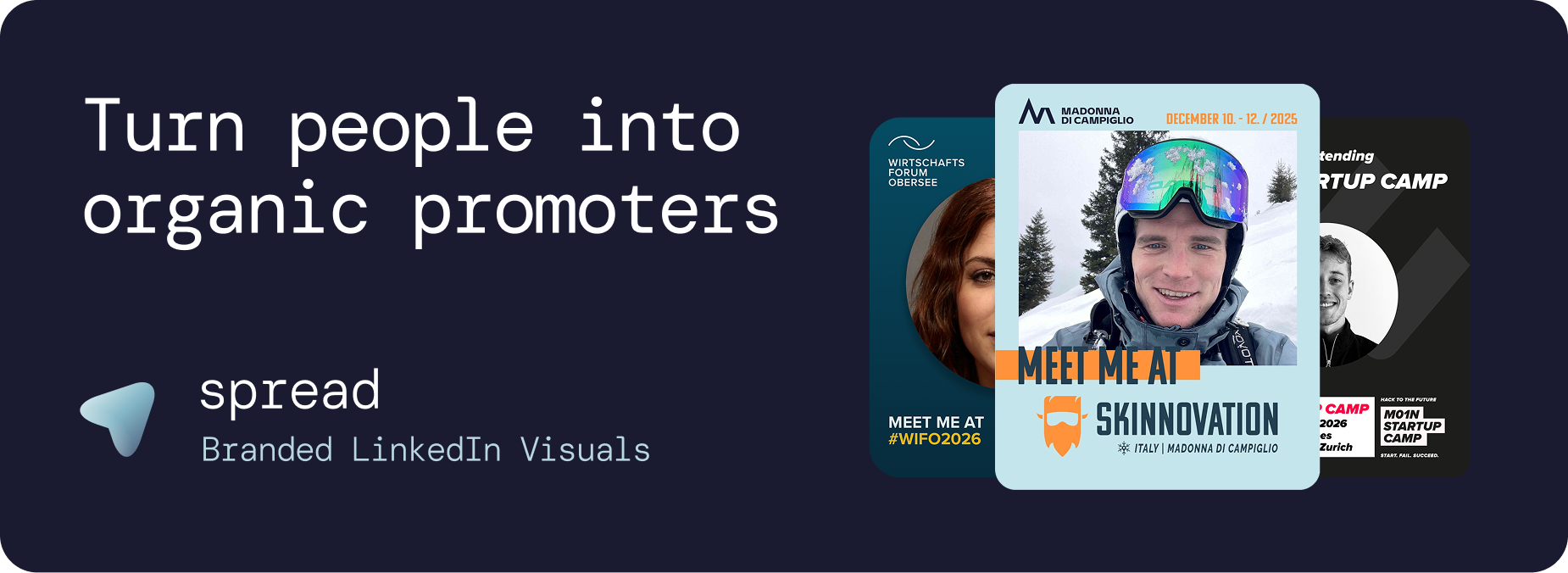
What we see in our partner analyses is compelling:
In our analyses of past partner campaigns, 100 posts generated more than 250,000 organic impressions on LinkedIn. That reach costs nothing in media and is trusted, because it comes from people rather than from sponsored posts.
What Makes a Great Event Graphic Creator
Not all tools are created equal. A good event graphic creator needs to solve two problems simultaneously: make it easy for organizers to maintain brand consistency, and make it effortless for attendees to create and share their personalized graphic.
Requirements for Organizers
Brand-locked templates: Attendees should personalize with their photo without being able to break the event branding
Fast setup: minutes, not days, from start to shareable link
Multiple templates: Role-specific variants for attendees, speakers, sponsors, and VIPs
Caption management: Pre-written LinkedIn captions that attendees copy with one click
Analytics dashboard: Real-time tracking of downloads, template performance, and estimated impressions
Branding import: colours, logo and event details pulled from your event website
Requirements for Attendees
No account required: Click a link, upload a photo, download. Done.
No app download: Works entirely in the browser on any device
No design skills: The template handles all design decisions
Mobile optimized: Most attendees will use their phone
One-click captions: Copy a pre-written LinkedIn caption instantly
Go Spread: An Event Graphic Creator Built for LinkedIn
Go Spread is an event graphic creator built for the event-to-LinkedIn workflow. Unlike generic design tools, it was designed from the ground up for one job: turning event attendees into organic promoters, without an account or app on their side.
Used by Organizers Running Real Events
We built Go Spread for our own events first. Since then, startup conferences, investor forums, industry forums, operator communities, leadership summits and HR and talent conferences have run their attendee graphics on it, from small invite-only formats to large multi-day events. The customer case studies show real campaigns, what organizers set up and what the graphics delivered.
Key Features of our Event Graphic Creator
Go Spread offers everything an event graphic creator needs:
Design Editor
Create the graphic right in Go Spread, no Canva or Figma needed. Pick who it is for (Meet me at, Speaker, Attendee, Partner or Visit us), choose one of 17 templates in square or portrait, add your event details and logo, and pick an animated, gradient or image background. Animated backgrounds post as a looping GIF that plays in the LinkedIn feed, and the photo area is already placed when you create the campaign. Every template and option is on the Design Editor page for event graphic design.
Already have a design from Canva or Figma? Upload it as a PNG: Go Spread detects a transparent photo area and places the attendee photo behind your artwork.
Dual Mode System
Go Spread supports two creation modes and picks the right one automatically from your upload:
Quick Mode: upload a finished design (or build one in the Design Editor) and position the photo area on top of it. Ideal for organizers who have existing designs.
Transparent PNG Mode: Upload a template with a transparent photo area. The attendee's photo slides behind the template overlay. Clean and professional.
LinkedIn-Optimized Output
Portrait output is 1080x1350px (4:5 ratio), which takes up the most space in the LinkedIn feed. In our experience, portrait graphics get noticeably more attention than square or landscape ones, simply because they fill more of the screen.
Caption System
Organizers write 3 to 5 LinkedIn captions per template. Attendees see the captions alongside their graphic and copy them with one tap. In our experience this noticeably increases share rates, because attendees do not need to think about what to write. If you need a starting point, the free LinkedIn caption generator drafts event captions for you.
Real-Time Analytics
Track everything that matters:
Page views and total downloads
Template performance comparison
Daily trends and direct LinkedIn posts
Estimated LinkedIn impressions
Conversion funnel analysis
Event Graphic Creator Comparison: Go Spread vs. Canva vs. Custom Development
Feature | Go Spread | Canva | Custom Development |
|---|---|---|---|
Setup time | Minutes | Hours | Weeks |
Cost | Flexible plans | Free (limited) | Significant development budget |
Brand control | Locked templates | Attendees can edit everything | Full control |
Account needed (attendees) | No | Yes | Depends |
Pre-written captions | Yes | No | Custom build needed |
Analytics | Built-in dashboard | None | Custom build needed |
Mobile experience | Optimized | Generic | Depends |
Updates and support | Included | N/A | Additional cost |
Canva is a strong design tool, but attendee graphics also need one shareable link, prepared captions and analytics. For a detailed side-by-side of Canva Bulk Create and Go Spread, read Go Spread vs Canva. If you would rather skip the design tool entirely, the Go Spread Design Editor described above is a Canva alternative made for event graphics.
Use Cases Beyond Conferences
1. Employee Advocacy Programs Branded LinkedIn Graphics
Companies use an event graphic creator for internal events and company milestones. When employees share branded graphics about team events, hackathons, or company celebrations, it doubles as employer branding and recruitment marketing, the same idea behind branded new-hire graphics for employer branding.
2. Product Launches Branded LinkedIn Graphics
Launch events benefit from branded graphics that early adopters and beta testers share. "I was at the launch" graphics create exclusivity and buzz.
3. Award Ceremonies Branded LinkedIn Graphics
Nominees and winners share graphics with role badges like "Nominee," "Finalist," or "Winner." These high-engagement posts extend the ceremony's reach far beyond the venue.
4. Community Building Branded LinkedIn Graphics
Professional communities and associations use an event graphic creator to grow membership. When current members share, their networks discover the community organically.
5. Sponsor Activation with Branded LinkedIn Graphics
Sponsors can have their own branded template variant within the event graphic creator. This provides measurable sponsor exposure and a tangible deliverable for sponsorship packages.
Best Practices for Your Event Graphic Creator
Design
Use bold event colors that contrast with LinkedIn's white feed
Keep text minimal: event name, date, city
Make the photo area generous, a large part of the graphic
Include role badges for different participant categories
Give it motion: an animated background turns the graphic into a looping GIF that stands out in the feed
Test on mobile before launching
Distribution
Include the link in registration confirmation emails
Add a "Create Your Graphic" button to the event website
Send dedicated emails 3 weeks and 1 week before
Share early adopter examples on social media
Brief speakers and sponsors personally
Timing
Launch your event graphic creator 3 to 4 weeks before the event. This creates sustained buzz rather than a single spike. For B2B audiences, midweek posts tend to do well in our experience, but getting the link out early matters far more than the weekday.
Get Started with an Event Graphic Creator
Try Go Spread as your event graphic creator: start free and start with a template in the Design Editor. For larger events, contact the team to discuss the most fitting plan for your needs.