
Best Tool for I'm Attending Graphics for Conferences
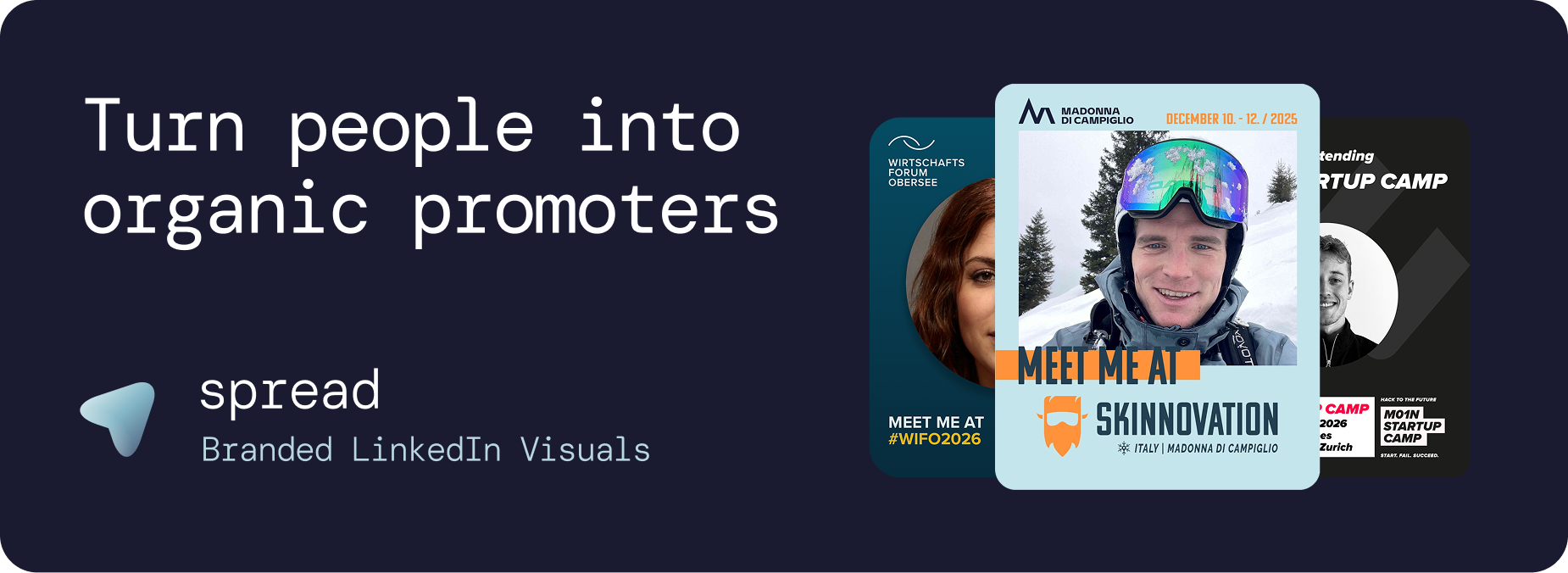
A tool for I'm attending graphics lets an organizer publish one branded event graphic and share one link, so every attendee can add their photo and download the image or post it to LinkedIn with a prepared caption. No design work for the attendee, no account, and the branding stays exactly as you designed it.
That sounds like a small job, and for one person it is. For three hundred attendees it is not. Somebody has to keep the design consistent, answer "where do I put my photo?", write a caption people will actually use and, afterwards, tell sponsors what all of it achieved. We run events ourselves, and the tool you pick decides whether that work lands on your team or disappears into a link.
What a good I'm attending graphics tool has to do
Not every design app qualifies. The job is specific: get a personalized, on-brand graphic from your registration email onto an attendee's LinkedIn feed with as little friction as possible. If you are new to the format itself, our complete guide to I'm attending graphics covers the why and the design basics first.
The must-haves
No attendee account. Every sign-up screen loses people. Attendees should open the link, add a photo and be done.
Locked branding. Attendees change their photo and, if you allow it, their name or role. Fonts, colours and layout stay yours.
Prepared captions. The hard part of posting is rarely the image. It is the first sentence. A caption they can copy, or post directly, removes that barrier.
Works on a phone. Most people open the link from an email on their phone, so the whole flow has to work there, camera upload included.
Numbers for the organizer. Views, downloads, direct posts and which graphic performed best, so you can report to sponsors and plan the next edition.
Feed-friendly formats. Portrait 1080 x 1350 takes up the most space in the mobile feed; square works too.
The nice-to-haves
Several graphics in one link: attendee, speaker, sponsor, exhibitor
Branding imported from your event website
Posting straight to LinkedIn instead of download and upload
Animated versions that move in the feed
Your own subdomain and branding on the attendee page
How Go Spread works as a tool for I'm attending graphics
We built Go Spread because we needed exactly this for our own events. Here is what it looks like from both sides.
For the organizer
Create the campaign. Add the event name and paste your website URL; "Import branding" reads your colours, logo and event details from it.
Add your graphic. Upload your own design (PNG, SVG or an animated GIF) or build one in the Design Editor, then mark where the attendee photo goes.
Write a few captions. Three short ones in different tones are plenty: excited, networking-focused and topic-focused.
Add variants if you need them. A speaker card, a sponsor card or a booth graphic for exhibitors, all behind the same link.
Share the link. In the confirmation email, on the event website and in your speaker and sponsor briefings.
For the attendee
Open the link on any device, no account needed.
Add a photo from the camera roll, or use their LinkedIn profile photo.
Pick a graphic if there are several.
Post it to LinkedIn with a prepared caption they can edit, or download the image and post it themselves.
That is it. Between 40 and 60% of people who open a Go Spread link go on to download their personalized graphic, and in our experience the reason is not the design but the missing friction. You can see the full organizer and attendee flow on the I'm attending graphics for LinkedIn page.
Go Spread vs. Canva for I'm attending graphics
Canva is a very good design tool, and plenty of organizers design their event graphic in it. The difference shows up once you hand that design to hundreds of people.
Go Spread | Canva template link | |
|---|---|---|
Attendee account | Not needed | Needed to edit a shared template |
Branding | Locked, only the photo and chosen fields change | Everything stays editable |
Captions | Prepared, copy or post directly | Sent separately |
Posting | Direct to LinkedIn or download | Download, then upload to LinkedIn |
Organizer analytics | Views, downloads, direct posts, estimated impressions | No campaign view across attendees |
So the honest answer is: design in whatever you like, and use a dedicated tool for the part where hundreds of people personalize and post it. We compare the two in more detail in Go Spread vs. Canva.
Should you build your own tool instead?
Some teams with developers in-house think about it. A photo upload and a canvas sound quick. In practice you end up building an image editor that works on every phone, a caption system, LinkedIn posting, analytics and the support around it, and then you maintain all of it for an event that happens once or twice a year.
Unless the tool itself is your product, that time is better spent on the event. Start with the free plan of an existing tool, and only build if you hit a limit you cannot work around.
Where I'm attending graphics work best
Conferences and summits
The classic case. Every attendee who posts shows the event to colleagues, clients and peers who look a lot like your next attendees, and with a few hundred people the reach adds up quickly. In our analyses of past partner campaigns, 100 posts generated over 250,000 organic impressions; we explain how 100 shares turn into 250,000 views step by step.
Corporate events and offsites
When employees post about an offsite or a company event, it doubles as employer branding: people outside see a team they might want to join.
Startup events and meetups
Founders and investors like to show where they are, and a branded graphic is an easy way to say "I'm here, come and talk to me".
Communities, workshops and award nights
Members who post bring in the next members. For award ceremonies, a "finalist" or "nominee" version is one of the graphics people are proudest to share.
Getting the most out of your I'm attending graphics tool
Timing
Send the link with the registration confirmation, when excitement is highest, and remind people a week or two before the event. Speakers and sponsors deserve their own short email with their version of the graphic.
Design
Give the photo a generous area, keep the text to event name, date and city, and use colours that stand out against LinkedIn's mostly white feed. A small role label ("Speaker", "Sponsor", "First-timer") makes people feel seen.
Captions
Write three to five, each with a personal first line, the event name and date, your hashtag and the link. Our article on LinkedIn captions for events has templates you can adapt.
Measuring it
Go Spread shows views, downloads, LinkedIn direct posts, performance per graphic and estimated impressions. To estimate reach before the campaign even starts, the event reach calculator turns your attendee numbers into a rough forecast you can show your team.
Try it on your next event
You can set up your first campaign for free, no credit card needed, at Go Spread. For larger events or special requirements, contact the team and we will help you find the right setup.